VEP Boss Chat · Guide
Chat topics for your AI twin
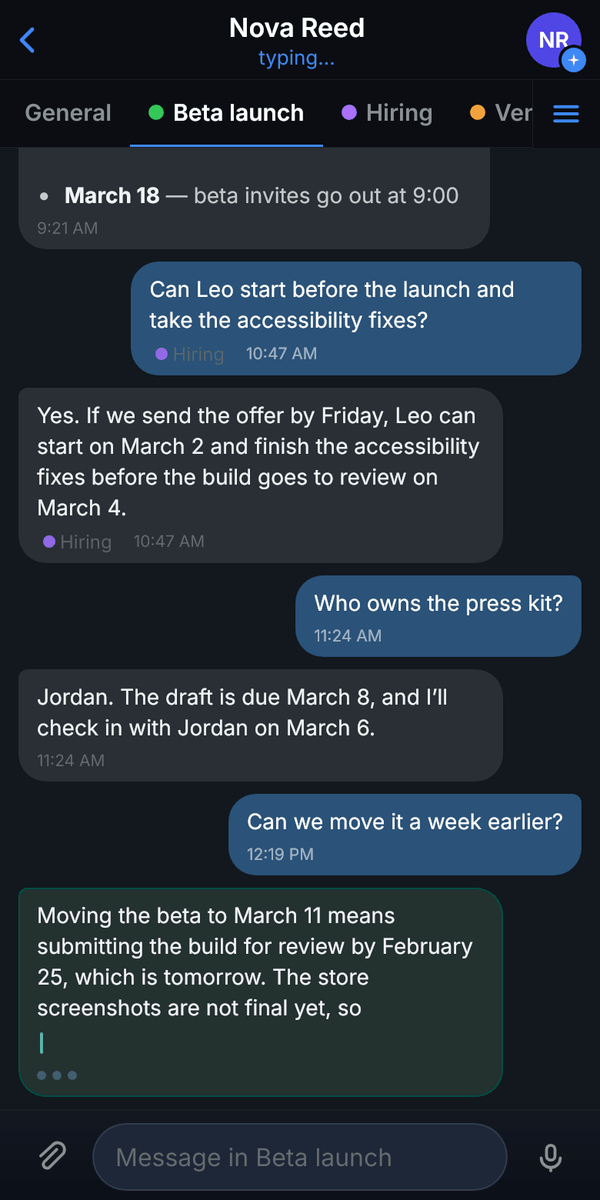
Tag any message into a topic and keep one long chat with your AI twin tidy, without splitting it into separate chats. Every subject gets its own tab, one message can sit in several topics, and your twin answers inside the topic you are in. Your chats with people can have topics too, and only you see them.
- Beta launch
- Hiring
- Vendor contract
Early access · Updated · In VEP Boss Chat and in chats with people, on iPhone, iPad, Android and desktop, rolling out workspace by workspace
Why chat topics help
A chat with your AI twin grows fast: a launch plan, a new hire, a contract, a quick question in between. Topics organize AI conversations by subject, so each one keeps its own place without splitting your twin into separate chats.
One chat, many topics
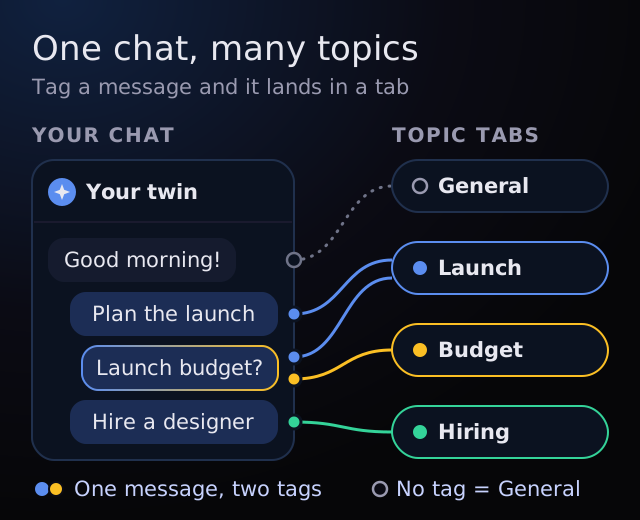
Tag a message and it lands in the topic's tab. Topics work like threads inside one chat, and they are tags, not folders: a budget question can live in both Launch and Budget at once.
Messages without a tag stay in General, so nothing gets lost.
Focused AI answers that stay on the subject
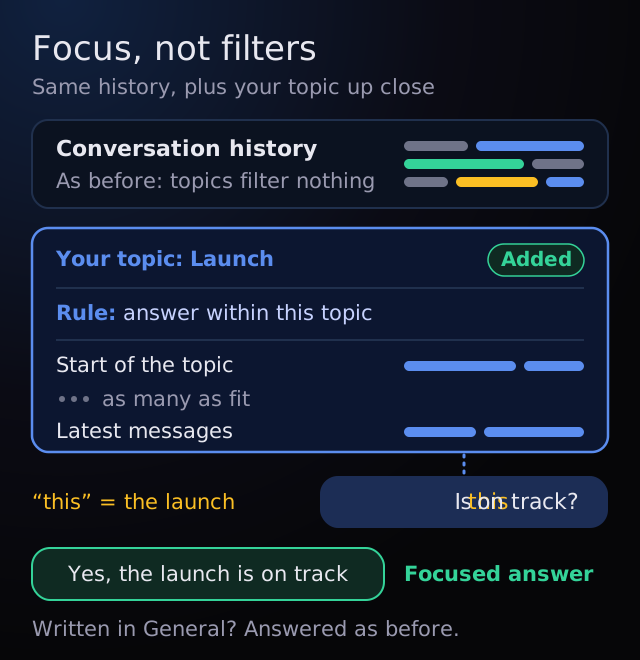
Write inside a topic and your twin answers inside it. It still gets the conversation history as before, and it also gets the topic up close, right before your new message.
So “this”, names, numbers and dates are read against the subject you are in, not against whatever came last in the chat.
Topics only you can see
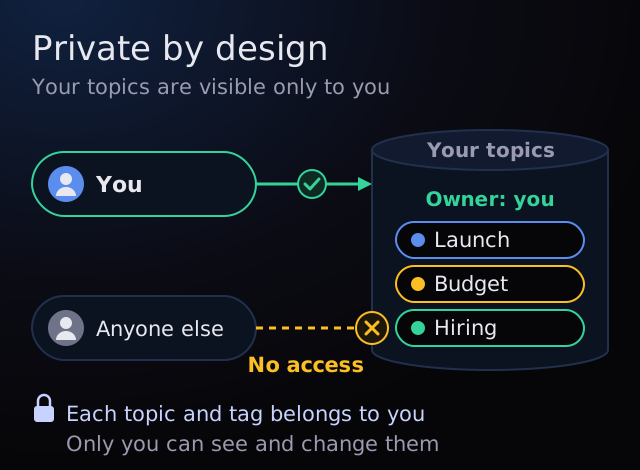
Your topics are personal. Other people never see them, or which messages you tagged.
Only you can see and change your topics.
How chat topics work
Topics are personal tags on the messages of one chat. Nothing is split or copied, and topics hide nothing from your twin.
Invisible until used
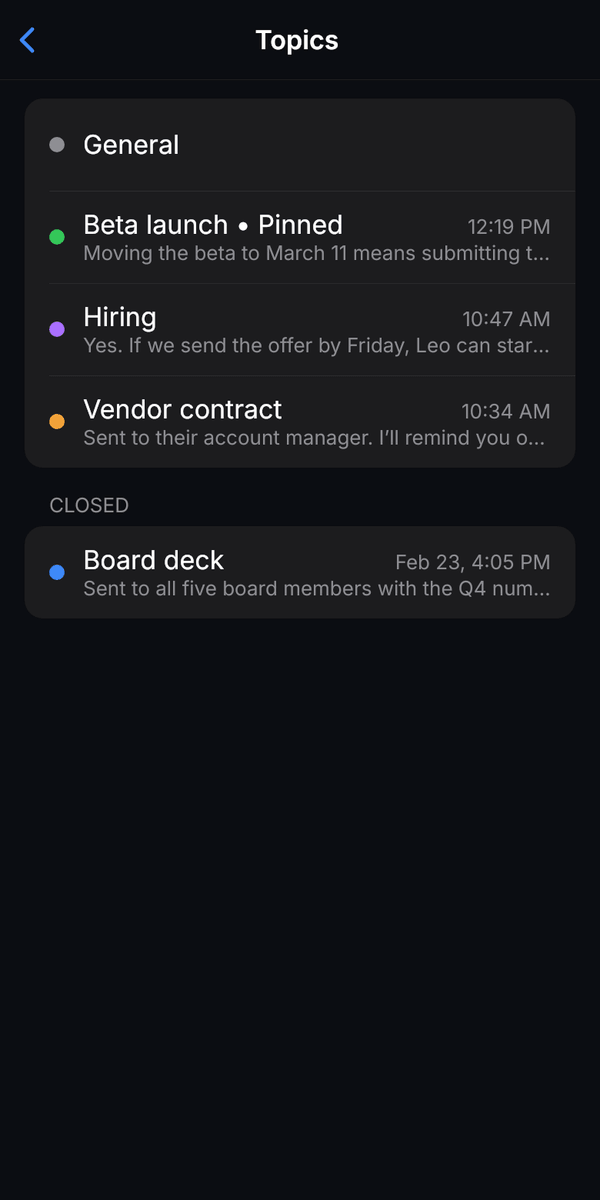
A chat shows no topic tabs until its first topic exists. Then one row of tabs appears under the chat header.
Tabs that work like threads
General comes first, then pinned topics, then the rest by latest activity. The + chip adds a topic, and ≡ opens the list of all topics.
General is home
General shows every message that is in no topic. Where messages moved out, a small pill says how many and where they went.
Many tags per message
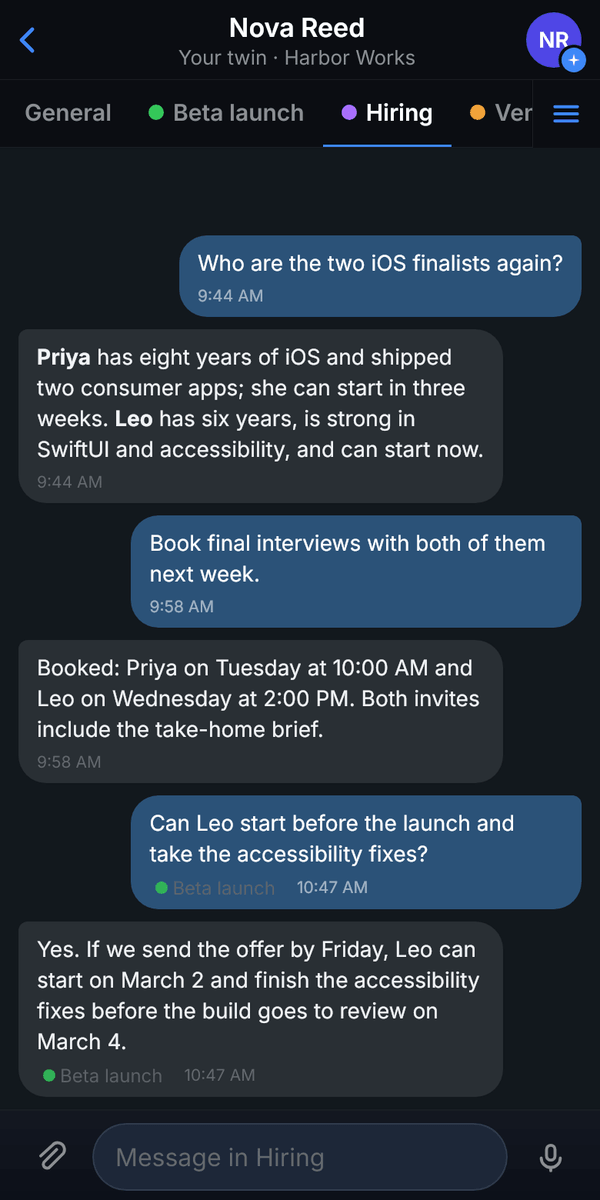
One message can sit in several topics at once. Small colored dots under it name its other topics.
Nothing is deleted
Moving only tags a message. Untick every topic and it is back in General. Remove a topic and its messages return to General, unless they sit in another topic.
Private to you
Other people never see your topics, and only you can change them.
What your twin reads inside a topic
When you write inside a topic tab, your twin answers in that topic. Here is what it receives, top to bottom:
- The conversation history, as before: topics filter nothing out of it.
- The topic up close: its name, the instruction to answer within this topic and to read “this”, names, numbers and dates against it, then the start of the topic and its latest messages.
- Your new message.
That is why answers stay on the subject. Messages written in General get no topic block and are answered as before.
Parallel answers across topics
If your twin is still answering in one topic and you write in another, the new answer starts at once, in parallel, instead of waiting for the first one.
Inside the same topic, messages keep their order: the next one waits its turn. While your twin answers in another topic, its tab shows typing dots and a “typing in …” line names it. Tap or click that line to jump there.
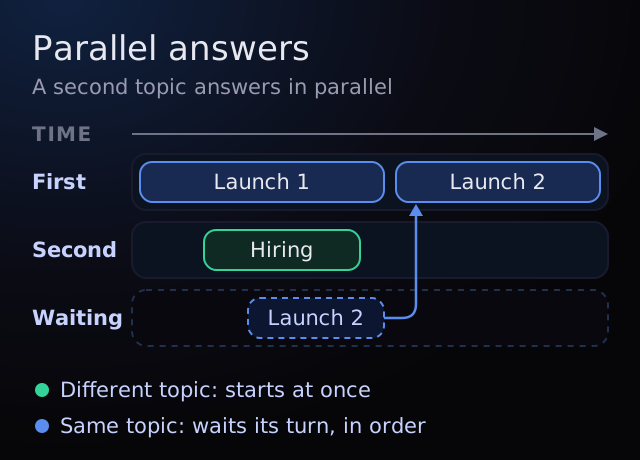
Your twin's knowledge stays the same
Topics organize the chat, not your twin. Its knowledge stays one per twin, and nothing is learned automatically from your topics.
How to tag messages into topics on your phone
The steps are the same on iPhone, iPad and Android. Labels below are exactly what you see in the app.
Screenshots show a demo workspace with fictional people and companies.
1 Create your first topic
- Touch and hold a message and tap Move to Topic.
- Because the chat has no topics yet, New Topic opens straight away. The name is filled in from the message: keep it or type your own, and pick one of six colors.
- Want the rest of the conversation too? Turn on Include Later Messages, and every message after this one moves as well.
- Tap Create. The new topic opens, and the tab row appears under the chat header.
A question and your twin's answer always move together.
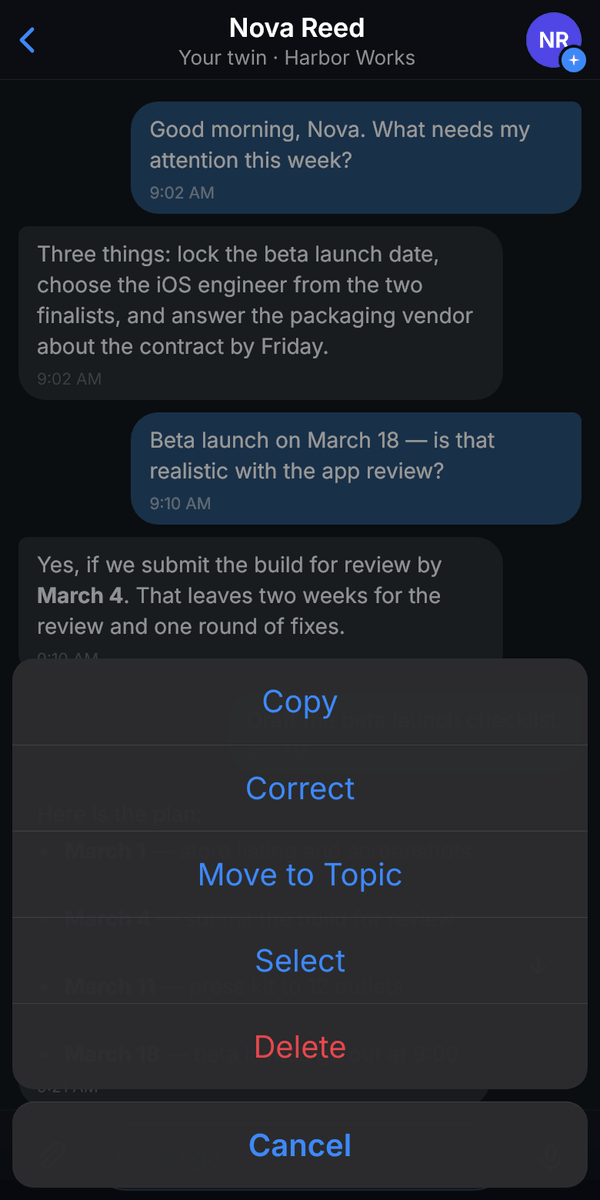

2 Move a message, or everything after it
- Touch and hold a message and tap Move to Topic.
- Tick one topic or several. New Topic at the top makes another topic on the spot.
- Turn on Include Later Messages to move every message after this one too. Handy when a side conversation becomes the main one.
- Tap Done.
A toast confirms the move, for example “Moved 2 messages”, with Undo for five seconds. Back in General, a pill such as “2 messages moved to Hiring” marks the spot. Tap it to open the topic right at those messages.

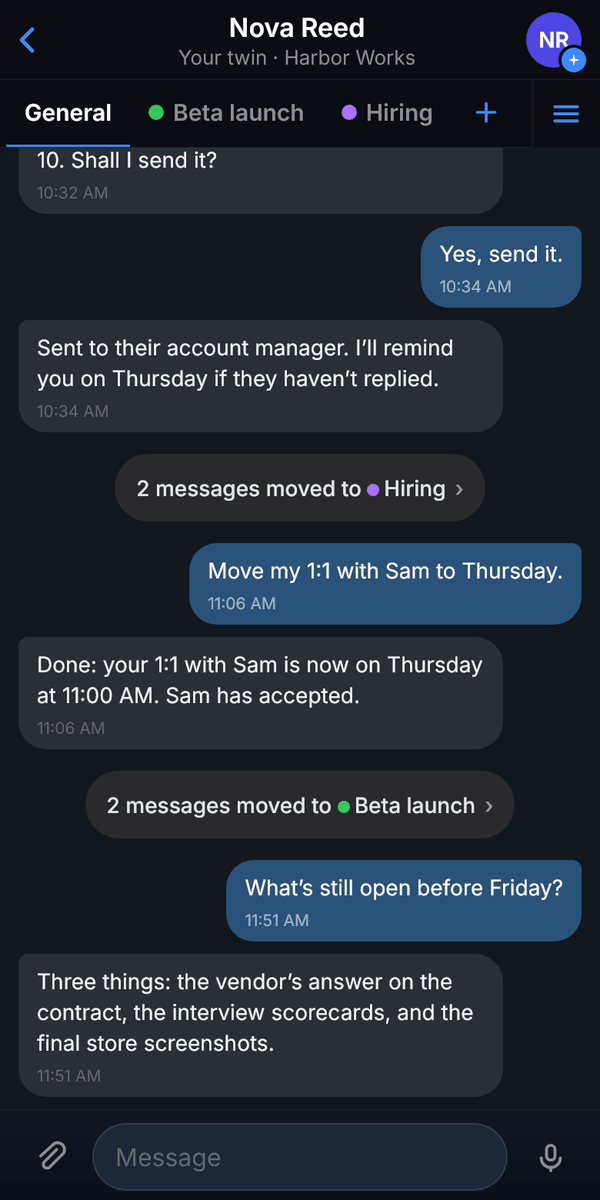
3 Move several messages with Select
- Touch and hold any message and tap Select.
- Tap the check circles to pick messages. A question and its answer are ticked together.
- All Below ticks every message from the first one you picked to the end of the chat.
- Tap Move to Topic in the bottom bar, tick your topics and tap Done. The same bar has Copy and Delete.
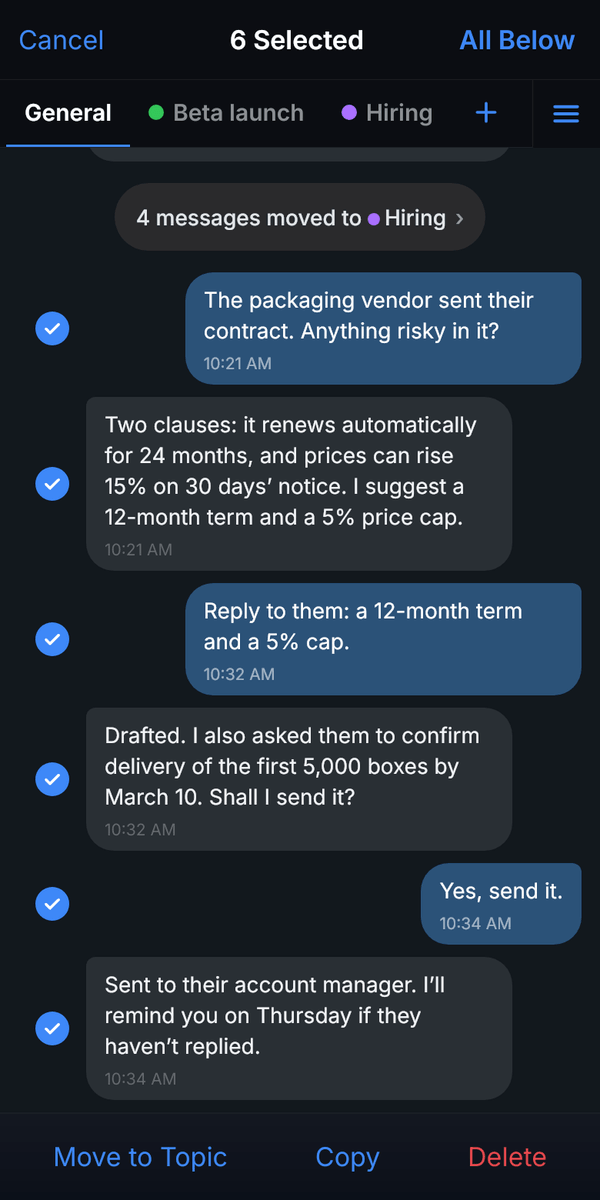
4 Start a topic from scratch
No message to move yet? Tap the + at the end of the tab row, or tap your twin's name at the top of the chat and choose New Topic. Name it, pick a color and tap Create. The empty topic opens, ready for your first message.
5 Write inside a topic
Open a topic's tab and write as usual. The message field reads “Message in” and the topic's name, for example “Message in Hiring”, and your twin answers inside that topic. Each answer stays in the tab where you asked.
A message that also belongs to other topics shows small colored dots with their names. Tap a dot to jump to that topic.
6 Undo, take a message out, or remove a topic
- Tap Undo in the toast within five seconds to reverse a move.
- To take a message out of a topic later, open Move to Topic on it, untick the topic and tap Done. With no ticks left, the message is back in General.
- To remove a whole topic, tap ≡, touch and hold the topic and tap Remove. Its messages go back to General, or stay in their other topics. Nothing is deleted.
7 Manage your topics
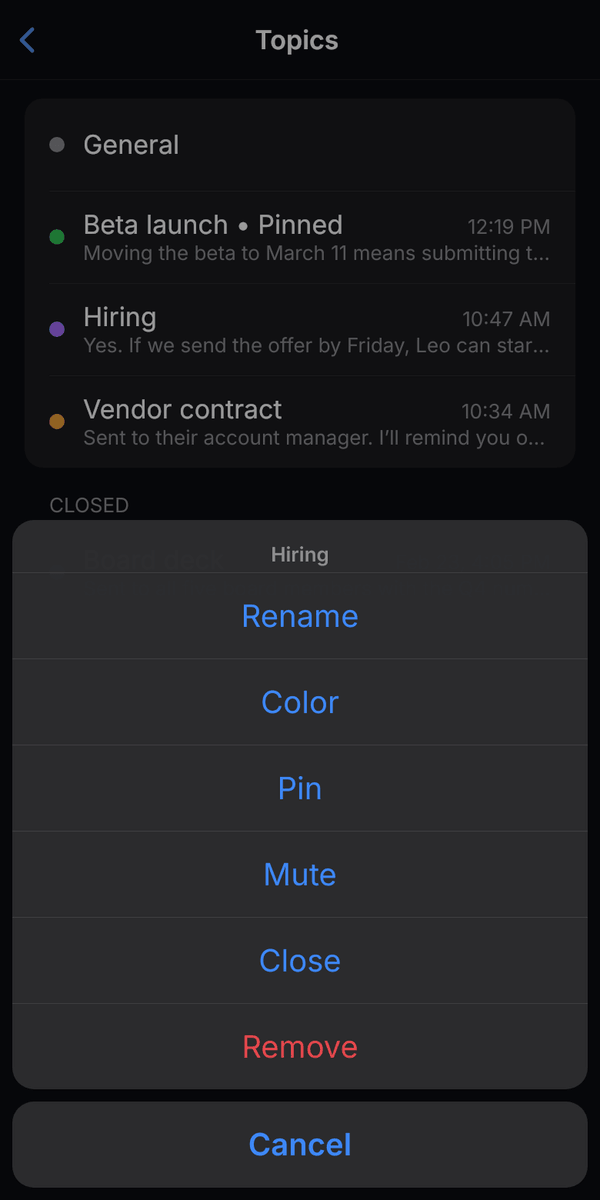
Tap ≡ at the end of the tab row to open Topics: General first, then your topics with their latest message, pinned ones on top, and a Closed section at the bottom. Tap a topic to open it, or touch and hold it for more:
- Rename the topic.
- Color: choose one of six colors.
- Pin: pinned topics come first.
- Mute: for 1 hour, 8 hours, 2 days or forever.
- Close: the topic becomes read-only and moves to Closed. It shows Topic closed with Reopen instead of the message field.
- Remove: its messages go back to General, and nothing is deleted.
Chat topics on desktop
In a desktop browser, topics work the same way in the Boss Chat panel and in your chats with people. The tab row sits under the panel header, with + for a new topic and ≡ for all topics.
- Right-click a message and point to Move to Topic: your topics appear as a checklist. Click a topic to tick or untick it. The change applies at once, with Undo. New Topic… creates a topic from the message.
- To pick several messages, click Select messages in the panel header, or Select in the right-click menu. Click messages to tick them, or Shift-click to tick a whole range. Then use All Below, Move to Topic, Copy or Delete.
- Click your twin's name in the panel header for New Topic and All Topics.
- In a chat with a person, right-click any message, yours or theirs, and point to Move to Topic, or choose New Topic in the chat's ⋮ menu. To move several messages, choose Select, click the others, then use Move to Topic in the selection bar or drag them onto a tab.


Topics in chats with people
Your chats with people, VEP Support included, can have topics too, on iPhone, iPad, Android and desktop. They work the same way as in the chat with your twin: touch and hold any message, yours or the other person's, and tap Move to Topic, or tap the person's name at the top of the chat and choose New Topic. On desktop, right-click the message, or open the chat's ⋮ menu for New Topic.
Only yours
You and the other person each file the same conversation into your own topics. They never see your topics, which messages you filed or which tab you are reading.
Their chat stays the same
Nothing changes on their side. Read receipts work as before: opening any of your tabs marks the chat as read for them, just like opening the chat did.
Replies follow
When someone replies to a message you filed, the reply joins your topic. New messages that are not replies arrive in General.
Write in a topic
Messages you send from a topic tab, photos and voice messages included, land in that topic for you only. Scheduled messages and voice messages recorded while you are offline arrive in General.
Tabs of their own
Each tab keeps its own draft and its own unread count.
Search and move
Search inside a topic with This Topic or Whole Chat. Move All to Topic… moves every message your search finds.
Group chats in forum mode already have shared topics, which every member of the group sees. Personal topics in group chats are coming next.
Limits, speed and coming back later
Topics are generous but not endless, they stay fast at their limit, and an old topic picks up where it stopped.
Up to 100 topics per chat
Each chat holds up to 100 of your topics, and one message can sit in up to 20 of them. Your chat with your twin and each chat with a person count separately, and a topic can hold any number of messages. Closed topics still count toward the 100: remove one you no longer need to free its place, and its messages that are in no other topic go back to General.
Fast at the limit
We tested 100 topics in chats of 20,000 messages. The tab row, the list of topics and Move to Topic open in under a second, and a topic's messages load page by page like the rest of the chat. The number of topics does not make answers heavier: your twin adds a limited part of only the topic you write in.
Coming back months later
Topics never expire. Write in an old topic and your twin reads its opening and latest messages, each with its date, together with what it knows today. In a long topic, name the subject you want to continue: your twin finds the matching earlier messages, however old they are.
Tips for tidy topics
- Keep names short, like Beta launch, Hiring or Vendor contract, so more tabs fit in the row.
- Pin the one or two topics you live in. Pinned topics come first.
- Use Include Later Messages when a side conversation becomes the main one.
- Searching inside a topic? Choose This Topic or Whole Chat under the search field.
- Close a finished topic to keep the tab row short. It stays readable under Closed, and it still counts toward the 100 topics a chat can hold.
- Need something from another topic? Say so in your message: your twin still gets the same conversation history as before.
- Coming back to an old topic? Name the subject in your first message, so your twin brings back the right details.
Chat topics FAQ
Do topics hide anything from my twin?
No. Topics add focus; they never filter. Your twin receives the conversation history as before. When you write inside a topic, the topic's own messages are also placed right before your new message, with a rule to answer within that topic. Messages written in General are answered as before.
Can one message be in two topics?
Yes. Topics are tags, not folders, so a message can sit in several topics at once, up to 20. Small colored dots under the message name its other topics.
Who can see my topics?
Only you. Topics are personal: other people never see your topics or which messages you tagged, and nobody else can change them. In a chat with a person, their side of the chat and your read receipts stay exactly as before.
Does moving a message copy or delete it?
Neither. Moving adds a tag, and the message stays in the same chat with its original time. Untick all its topics and it is back in General.
What happens when I remove a topic?
Its messages go back to General, or stay in the other topics they belong to. Nothing is deleted.
Can I undo a move?
Yes. Right after a move, a toast such as “Moved 2 messages” offers Undo for five seconds. Later, open Move to Topic on the message and change the ticks.
What if I write in one topic while my twin is still answering in another?
The new answer starts at once, in parallel, instead of waiting for the first one. Inside the same topic, messages keep their order.
Does my twin learn from my topics?
No. Your twin's knowledge stays one per twin, and nothing is learned automatically from topics. Topics only organize the chat and focus the answers.
Can I use my own topics in chats with people and in group chats?
Yes, in chats with people. Personal topics are live in Boss Chat, your chat with your AI twin and with other people's twins you can chat with, and in your chats with people, VEP Support included. Personal topics in group chats are coming next. Group chats in forum mode already have shared topics, which every member of the group sees.
Why don't I see topics yet?
A chat shows no topic tabs until its first topic exists, so touch and hold a message (or right-click it on desktop) and choose Move to Topic to create one. If Move to Topic is not there either, topics may not be on in your workspace yet. They are rolling out workspace by workspace and appear once your workspace is switched on, with nothing for you or your admin to set up.
Availability
Chat topics are in early access. They are live in VEP Boss Chat, the chat with your AI twin and with other people's twins you can chat with, and in your chats with people, on iPhone, iPad, Android and in desktop browsers, for selected workspaces.
Topics are rolling out workspace by workspace. Once your workspace is switched on, Move to Topic appears in your message menu, with nothing for you or your admin to set up. Personal topics in group chats are coming next.
Read the topics announcement in What's New.
Try it on your next message
Open VEP, touch and hold any message in the chat with your twin, or right-click it on desktop, and choose Move to Topic.